Platform
Original RFU targets 64-bit Windows. It is not a native macOS app.
 RBXFPSUNLOCKERGitHub
 Version 5.2 is the final Roblox FPS Unlocker release. The project is open source and archived; this site never mirrors or repackages the executable.
The owner archived the repository on June 21, 2024 after Roblox introduced a Maximum Frame Rate setting. For normal play up to 240 FPS, use the official in-game option. Only continue to RFU when you understand why the legacy utility is relevant to your setup.
RFU changes the frame-rate cap. It does not optimize graphics, increase GPU power, or turn a low-end PC into a high-frame-rate system.
Original RFU targets 64-bit Windows. It is not a native macOS app.
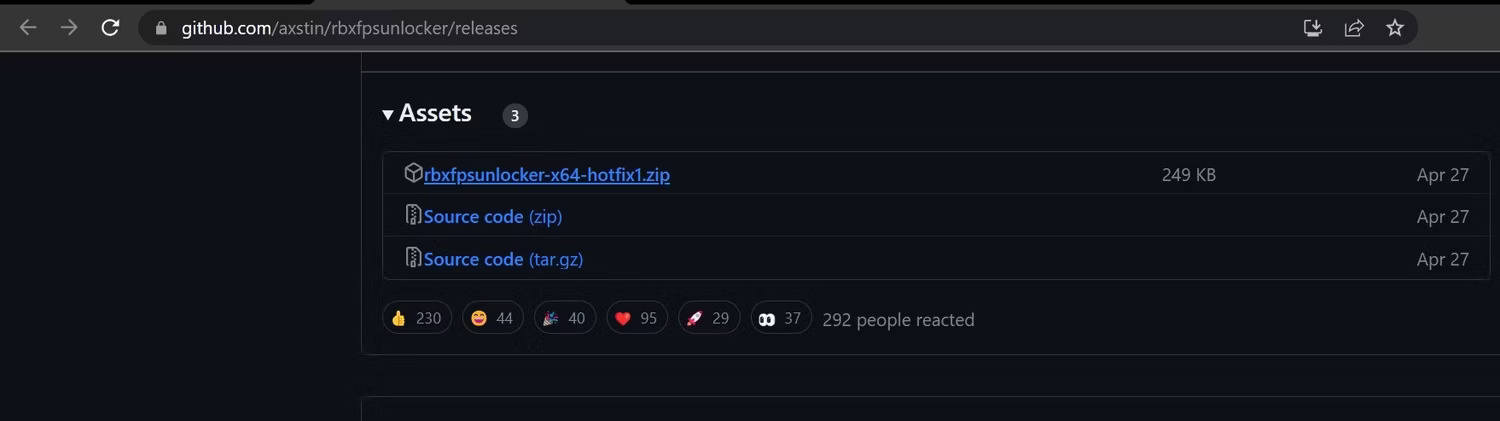
The GitHub release provides a ZIP archive containing the utility.
RFU is portable. Extract it, run it, and manage it from the tray.
Version 5.2 is preserved as-is; the repository no longer accepts updates.
These screenshots document the original Windows workflow. GitHub’s asset naming may differ between releases; always confirm the owner is axstin and the repository is axstin/rbxfpsunlocker.
Use GitHub, not a third-party mirror. Review the release notes and Assets section before downloading anything.
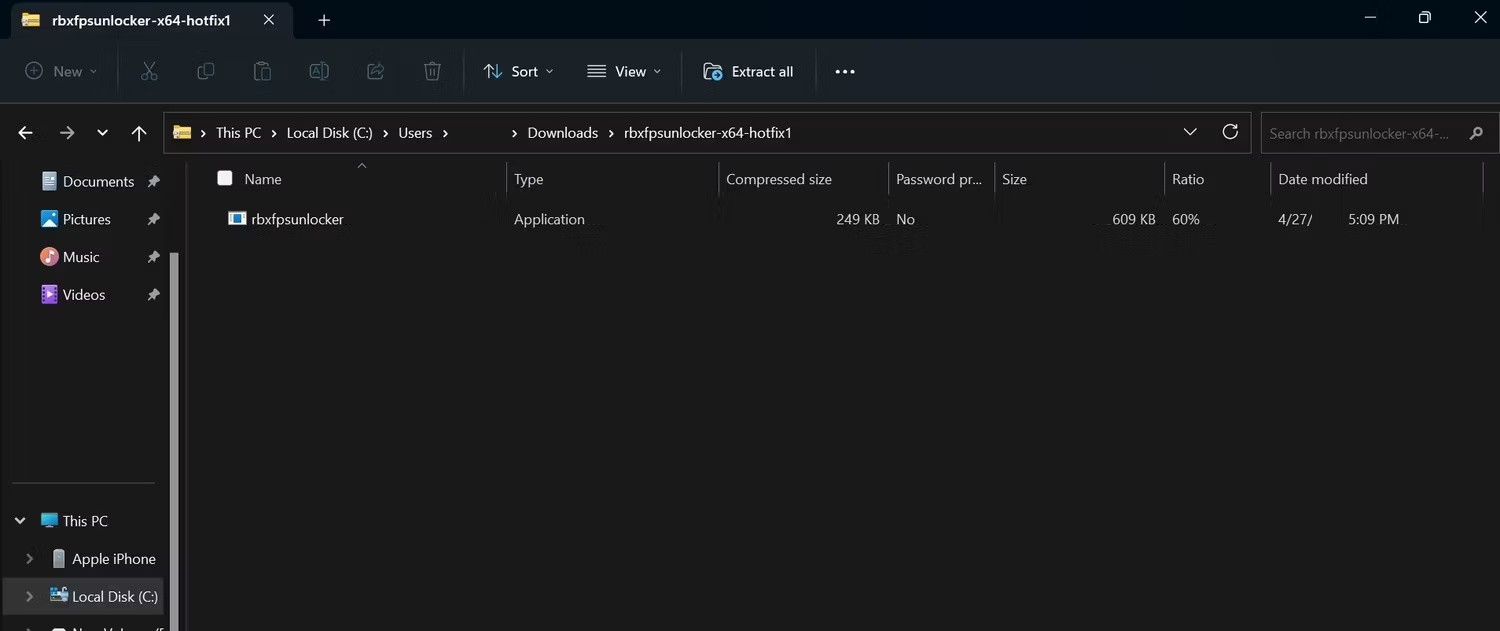
Do not run the executable from inside the compressed folder. Extract it into a dedicated folder you can remove later.
RFU has no large dashboard. Its red lock icon appears in the Windows notification area after launch.
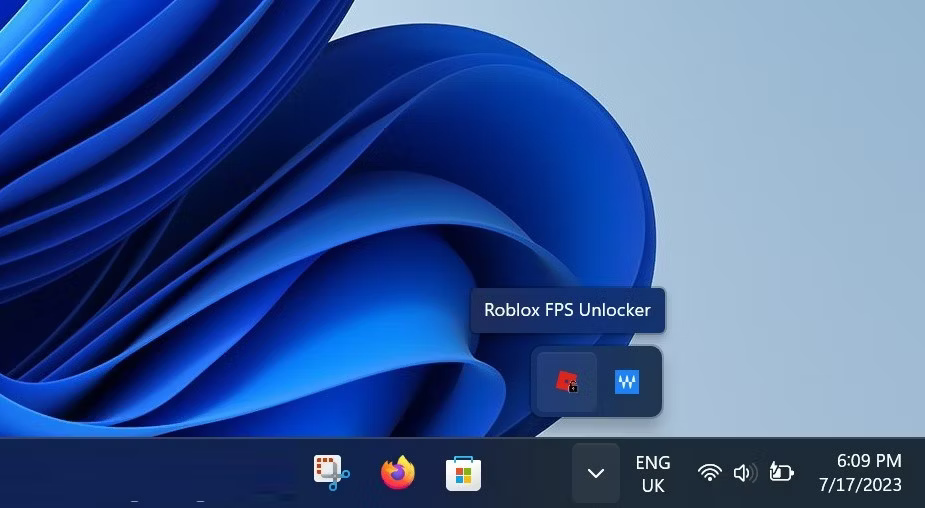
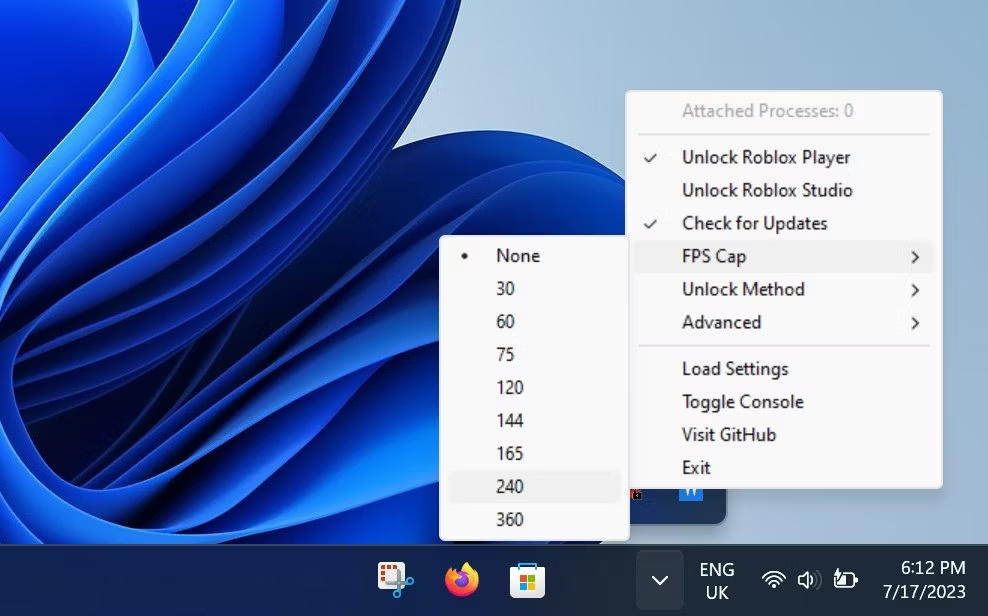
Right-click the tray icon, open FPS Cap, and choose a value. Then use Shift + F5 in Roblox to verify the result.