Independent guide · reviewed Not affiliated with Roblox Corporation
How to uncap Roblox FPS

Unlock Roblox FPS in three clean steps.

The current method is built into Roblox. You do not need a third-party FPS unlocker for frame-rate limits up to 240 FPS.

01

Join any Roblox experience

Launch Roblox on desktop and enter an experience. The Maximum Frame Rate control appears in the in-game Settings menu.
02

Press Esc and open Settings

Find Maximum Frame Rate. If the option is not visible, update Roblox and restart the client before testing again.

03

Select 60, 120, 144, or 240 FPS

Match the cap to your monitor where practical. Resume the experience, then press Shift + F5 to verify the live frame rate.
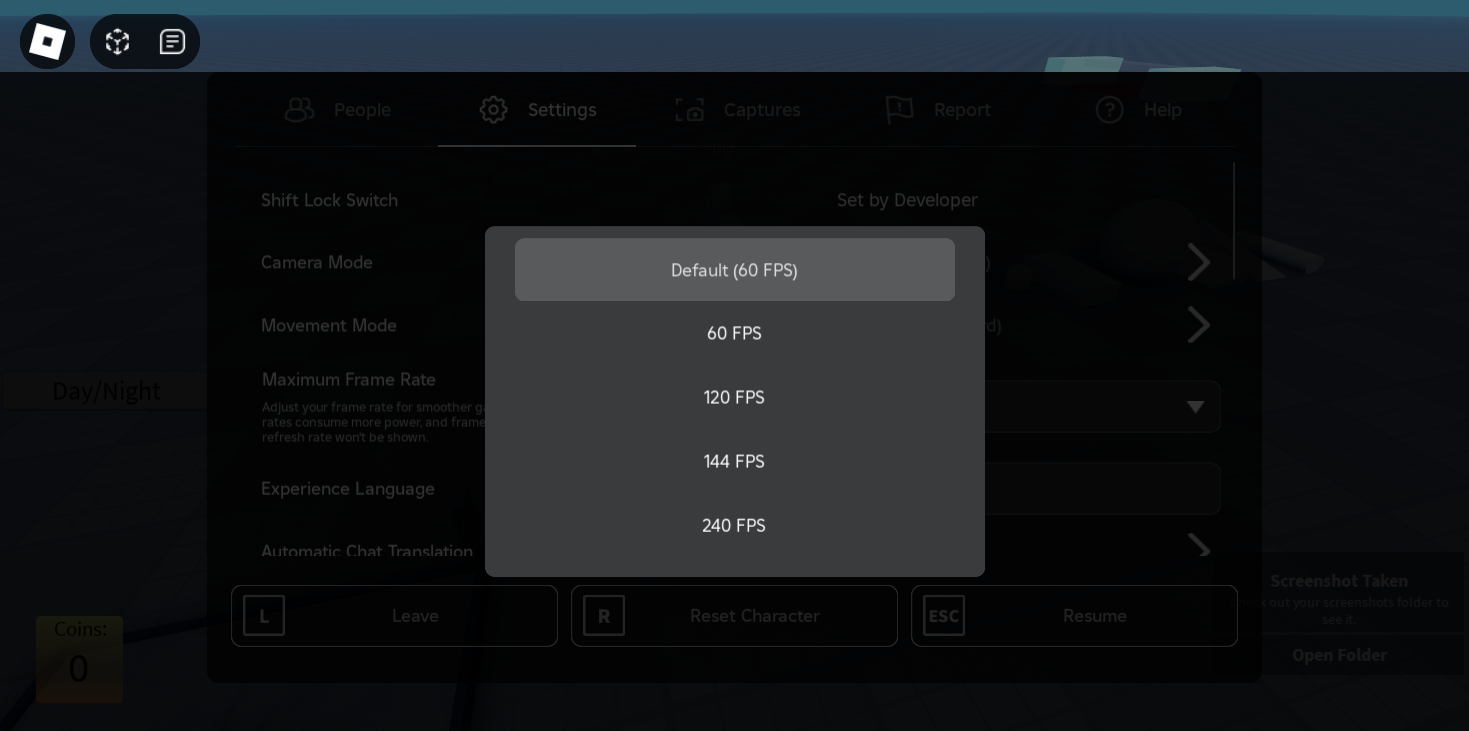
Roblox Maximum Frame Rate selector showing 60, 120, 144 and 240 FPS
Native Roblox frame-rate selector · no separate unlocker required
Choose a sensible cap

More FPS is useful only when the system can show it.

A 240 FPS cap does not guarantee 240 rendered frames. The final result depends on the Roblox experience, CPU, GPU, thermals, power settings, and display refresh rate.

0160 HZ DISPLAY
60FPS

Stable baseline

Lower load and power use for standard 60 Hz displays.

16.67 msLOW LOAD
02120 HZ DISPLAY
120FPS

Smoother motion

A balanced target for responsive play without maximum load.

8.33 msBALANCED
04240 HZ DISPLAY
240FPS

Native ceiling

For powerful hardware paired with a high-refresh display.

4.17 msMAXIMUM
Still capped at 60?

Check the bottleneck before adding another tool.

  • 1Confirm the Maximum Frame Rate value stayed selected.
  • 2Disable battery-saving or GPU whisper modes that enforce 60 FPS.
  • 3Lower Roblox graphics quality to see whether the GPU is the limit.
  • 4Compare multiple experiences; complex games can be CPU-bound.
Open troubleshooting docs
FRAME DIAGNOSTIC
Selected cap144 FPS
Measured FPS92 FPS

Result: the cap is open, but rendering performance is below the target. An FPS booster claim cannot replace hardware or optimization.